
If you are trying to figure out how to install cumination kodi addon or wondering why your kodi cumination addon not working, you have come to the right place. Setting up this popular cumination kodi plugin on the latest Kodi 21 Omega software requires specific steps, especially given updated security defaults and Python dependencies in recent builds.
This comprehensive, step-by-step guide to help you quickly set up your media player, fix common errors, and protect your privacy.
🔒 Important Privacy Notice: Streaming third-party media or using content aggregators can expose your real IP address to Internet Service Providers (ISPs), resulting in connection throttling or blocks. We strongly recommend securing your network with NordVPN to encrypt your traffic, bypass geo-restrictions, and stream privately.
Table of Contents
Step 1: Enable Unknown Sources in Kodi 21 Omega
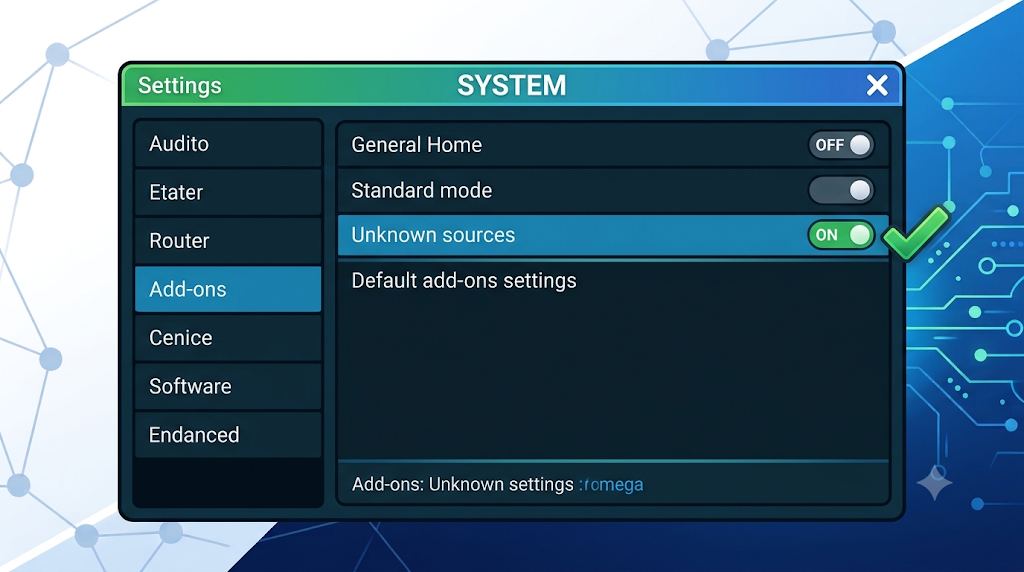
Because Kodi blocks third-party installations by default, you must first enable unknown sources to successfully install cumination add on packages:
- Open Kodi and click on the Gear Icon (Settings) at the top-left of the home screen.
- Select System.
- Hover over Add-ons in the left sidebar.
- On the right panel, toggle Unknown sources to ON.
- Accept the security warning prompt by clicking Yes.
Step 2: Add the Dobbelina Repository File Source
To add cumination kodi files to your system, you must configure the correct repository file source url:
- Return to the main Settings menu and click on File manager.
- Double-click Add source on either side of the screen.
- Click and carefully type the repository URL:
https://p-dobbelina.github.io/ - Click OK.
- Name the media source
dobbelinaand click OK again.
Step 3: Install the Repository & Cumination Kodi Plugin
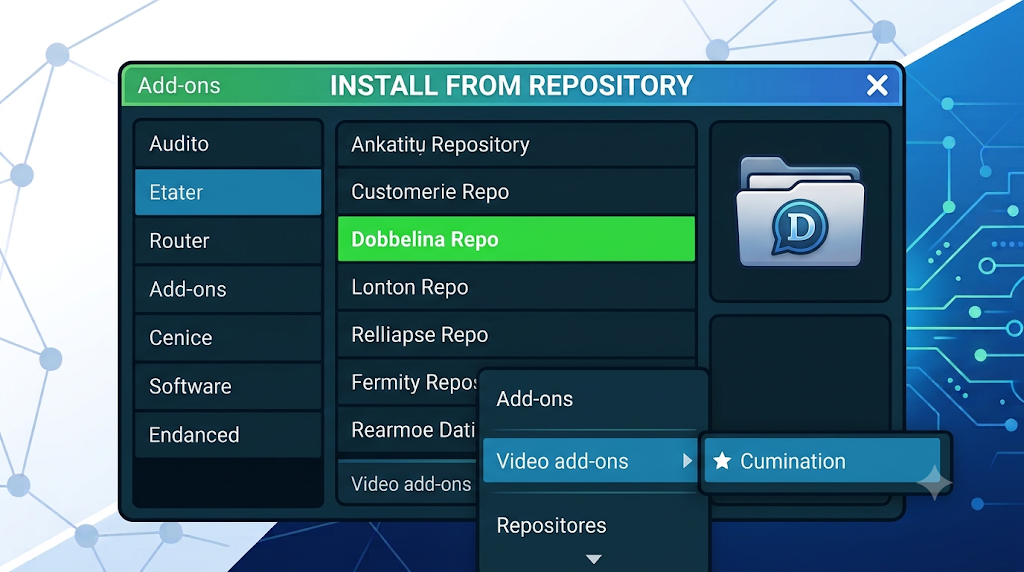
1.Install Repository Zip:2 min.
Go back to the main Settings menu, select Add-ons > Install from zip file. Select dobbelina, click on the repository zip file (repository.dobbelina-x.x.x.zip), and wait for the “Add-on installed” notification to appear.
2.Navigate to Add-ons:2 min.
Click Install from repository, select the Dobbelina Repo, and open Video add-ons.
3.Install Cumination:1 min.
Locate the Cumination addon/plugin, click on it, and select Install at the bottom right. Accept any dependency prompts.
Protect Your Streaming Connection with NordVPN
If you frequently encounter issues where the kodi cumination addon not working or failing to load streams, your ISP is likely throttling or blocking third-party media requests.
👉 Click here to secure your Kodi connection with NordVPN and claim an exclusive discount!
By routing your Kodi traffic through encrypted servers using NordVPN’s high-speed NordLynx protocol, you can bypass ISP interference and protect your online privacy effortlessly.
Troubleshooting: What to Do If Cumination Is Not Working
- “Could not connect to repository” Error: Verify that you typed the repository URL correctly. If your ISP blocks GitHub repository pages, turn on NordVPN to bypass the network restriction.
- Dependency Failure on Kodi 21 Omega: If the cumination kodi plugin fails to load after installation, restart Kodi entirely, ensure your system clock is accurate, and reinstall the zip file to force dependency updates.