
Table of Contents
The Ultimate Guide to The Crew Addon: Installation, Fixes, Real-Debrid Setup & Best Alternatives

The Crew Addon Setup, Troubleshooting & Updates Guide
For cord-cutters, home theater enthusiasts, and media streaming fans, the crew addon remains one of the most versatile and durable multi-source video add-ons in the open-source community. With dedicated sections covering on-demand movies, episodic series, sports feeds, live IPTV channels, and documentaries, it serves as a central entertainment hub.
However, operating community-maintained scrapers can occasionally lead to speed drops, broken provider links, and playback interruptions. This comprehensive manual walks you through getting the crew addon latest version, fixing common playback errors, integrating high-speed debrid services, and deciding if you should switch to the crew addon alternative or migrate toward hybrid platforms.
What Is The Crew Addon?
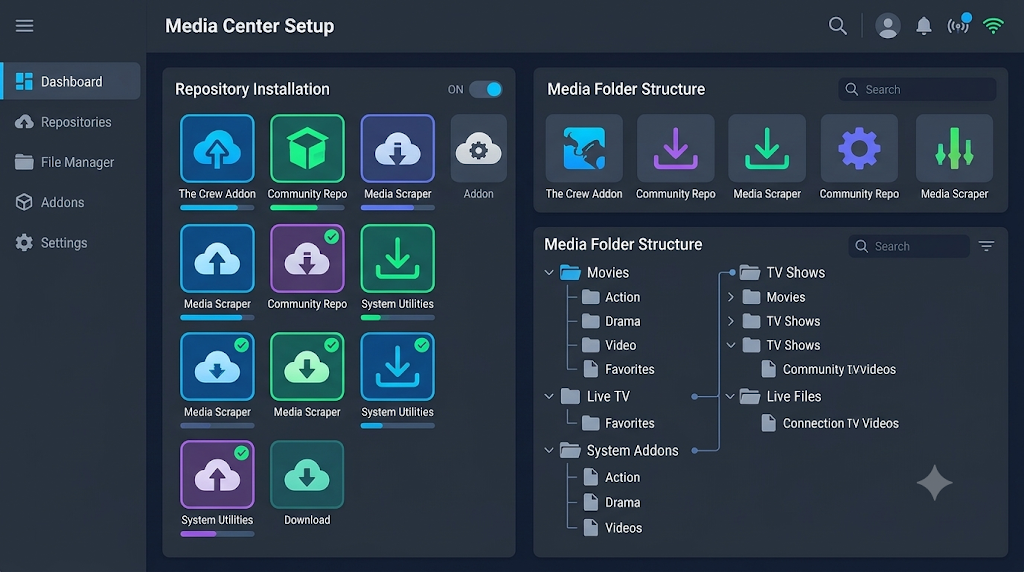
At its core, the crew addon functions as a multi-scraper and content aggregator designed to operate within the Kodi ecosystem. Rather than hosting media files on proprietary servers, it queries dozens of indexers and web hosts across the internet, returning working links categorized by resolution, audio channels, and hosting provider.
To ensure your installation stays secure and stable:
- Always install through verified repository URLs rather than loose pre-packaged zip files.
- Ensure your system meets the Python environment requirements of modern Kodi distributions.
- Pair the installation with a verified setup from our Best Kodi Builds Guide to maintain a lightweight, bloat-free layout.
Troubleshooting: The Crew Addon Not Working
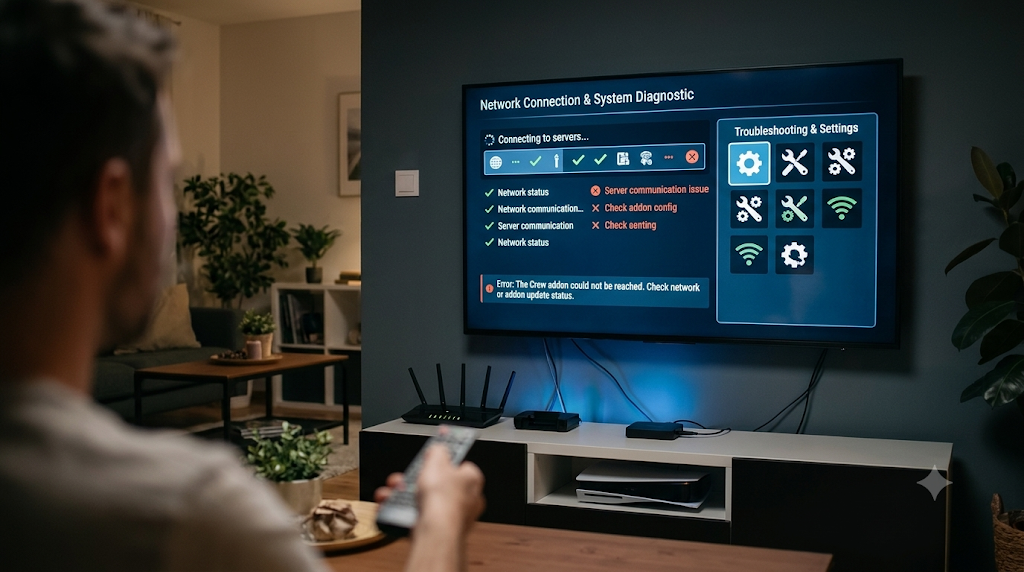
If you encounter startup crashes, script errors, or directory timeouts, the crew addon not working is usually attributable to one of three common causes: corrupted temporary cache files, network throttling, or broken scraper dependencies.
Follow these steps to systematically resolve common crashes:
- Clear Provider and Metadata Cache: Navigate to Tools inside the add-on settings and select both Clear All Cache and Clear Providers.
- Re-sync ResolveURL: Open your Kodi Add-on Browser, locate ResolveURL under system dependencies, and ensure it is updated to the newest release.
- Check Network Firewalls and ISP Blocks: Many internet service providers apply deep packet inspection to block public media scrapers. Testing your connection through an encrypted virtual private network often immediately resolves connection blocks.
For a deeper dive into debugging general script errors across all media extensions, check our walkthrough on Fixing Common Kodi Errors and Dependencies.
How to Fix “The Crew Addon No Stream Available” Errors
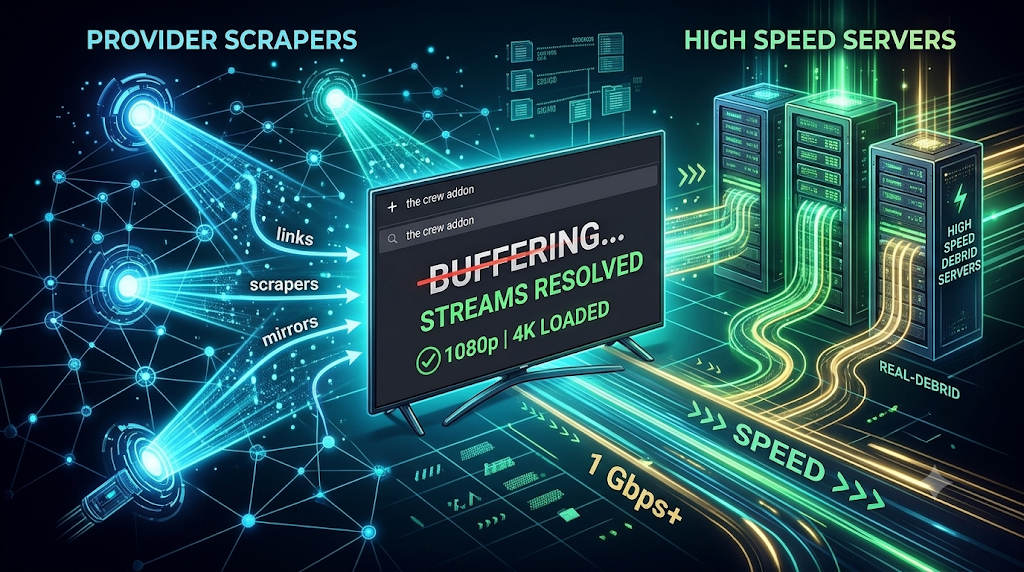
One of the most frequent search queries among users is encountering the crew addon no stream available message when attempting to play a specific film or series episode.
When scrapers fail to return links, apply the following remedies:
- Increase Scraper Timeout: Open the settings panel, navigate to the scrapers section, and raise the scraper query timeout window from 20 seconds to 45–60 seconds. This gives slower server hosts adequate time to return active links before Kodi times out.
- Toggle Scraper Providers: Over time, free host domains go offline. Within the scraper management sub-menu, enable secondary provider packages or toggle on foreign mirror hosts.
- Refresh Title Metadata: If a title was recently released, the scraper database might carry incomplete IMDB or TMDB identifiers. Clear metadata caches to force a fresh title lookup.
Supercharge Playback: The Crew Addon Real Debrid Integration

While free web sources exist, they often suffer from heavy network congestion, low bitrate caps, and frequent buffering. Authorizing the crew addon real debrid account completely transforms your streaming experience by unlocking high-bandwidth cached torrents and premium unrestricted direct links.
Step-by-Step Real-Debrid Authorization
- Open the crew addon and scroll down to Tools.
- Select ResolveURL Settings and click on the Universal Resolvers 2 tab.
- Scroll down to the Real-Debrid section, toggle Enable Real-Debrid on, and set priority to 90 (ensuring premium links display at the top of your search results).
- Click (Re)Authorize My Account.
- Note the alphanumeric authorization code generated on screen, open
real-debrid.com/devicein a web browser, and confirm the device connection.
Once paired, search results will highlight premium cached links with fast transfer speeds and multi-channel audio feeds. For comprehensive setup steps, review our Real-Debrid Complete Kodi Optimization Guide.
Keeping Current: The Crew Addon Update Guide
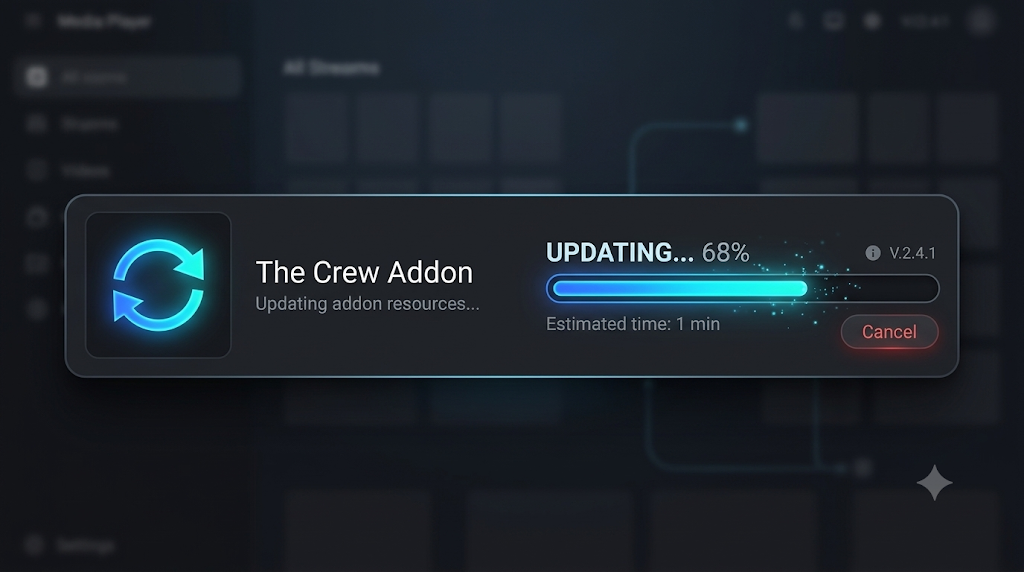
Repository maintainers push regular patches to fix dead scrapers and adapt to new API requirements. Running an outdated build will degrade link retrieval performance. Performing a proper the crew addon update ensures your scrapers stay aligned with current web hosts.
To force a manual check:
- Go to Kodi Settings > System > Add-ons.
- Select Manage Dependencies or click Update from repository.
- Right-click or long-press The Crew Repo and select Check for updates.
- Confirm any pending patches for both the core extension and the ResolveURL module.
For a full breakdown of auto-update schedules and clean re-installations, refer to our Kodi Maintenance and Repository Management Tutorial.
Top Recommendations: The Crew Addon Alternative
Whenever maintenance downtime hits or scrapers undergo structural overhauls, having a dependable the crew addon alternative installed on your streaming system ensures you are never left without options.
| Add-on Alternative | Primary Strength | Scraper Mechanism | Real-Debrid Support |
| Seren | Clean UI & Cloud Caching | Torrent Scrapers | Required |
| Umbrella | Lightweight, Rapid Scraping | CocoScrapers Engine | Supported |
| Fen Light | Ultra-Fast Performance | Minimalist Scrapers | Supported |
| Asgard | All-in-One Live & VOD | Multi-Source | Supported |
Explore detailed installation instructions for each in our curated list of the Top Working Video Addons for Kodi.
Expanding Beyond Kodi: The Crew Addon Stremio Setup
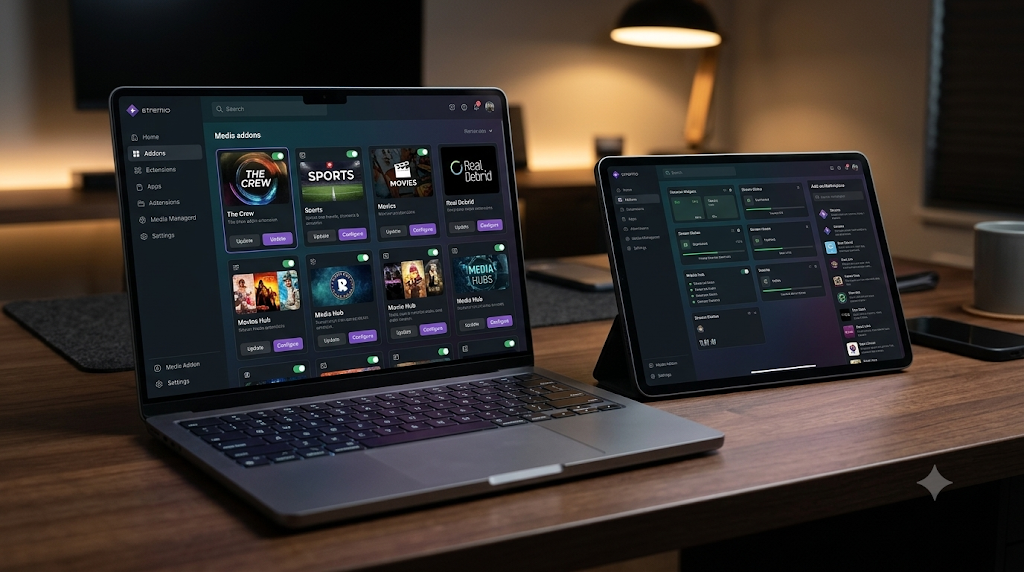
Many users who appreciate the vast catalog of community streaming explore whether the crew addon stremio configuration exists. While The Crew is strictly coded in Python for Kodi’s add-on framework, Stremio utilizes its own ecosystem of modular Node.js/web addons.
If you enjoy the automated scraper model of The Crew, you can achieve an identical, synchronized cross-device setup on Stremio using plugins like:
- Torrentio: Aggregates streams from across top public trackers with direct debrid account linking.
- MediaFusion: Adds niche video sources, international sports, and live broadcasting streams.
- CyberFlix Catalog: Organizes on-demand dashboards into customizable rows modeled after leading streaming services.
If you are curious about migrating to a lighter multi-device setup, read our complete Stremio vs. Kodi Streaming Comparison Guide.
Streaming Security & Privacy Protection

When querying multi-source scrapers and public link hosters, user IP addresses, browsing queries, and bandwidth spikes can be monitored by local network operators and ISPs.
Implementing a dependable virtual private network:
- Bypasses Scraper Blocks: Evades ISP-level DNS filtering and access restrictions.
- Prevents Speed Throttling: Masks streaming traffic patterns so your internet provider cannot artificially throttle high-bandwidth video streams.
- Protects Personal Data: Encrypts local hardware traffic on shared home and Wi-Fi networks.
To choose a suitable provider with optimized local nodes, check our tested recommendations in the Best VPN Services for Streaming and Media Boxes.
Recommended Playback Settings & Best Practices

To get the smoothest playback and highest stability from your setup, apply these operational best practices:
- Configure Video Cache: Use an advanced settings XML generator to allocate 200MB–400MB of device RAM as an emergency video read buffer.
- Turn On Auto-Play with Quality Caps: If your local download speeds vary, set the default link selection to auto-resolve 1080p rather than 4K uncompressed remuxes to avoid frame stuttering.
- Regular Repository Hygiene: Remove dead repos and unmaintained scrapers every few months to prevent background dependency conflicts.
Maintaining a clean software configuration keeps your media center responsive and ready for uninterrupted viewing.