
Table of Contents
How to Install & Setup YouTube Kodi Addon (2026 API Key & GitHub Guide)
Streaming online video directly inside your home theater interface eliminates the hassle of switching between multiple smart TV apps. The YouTube Kodi addon brings your subscriptions, watch-later playlists, history, and 4K/1080p playback straight into Kodi—completely free of pre-roll interruptions.
Because Google enforces strict daily request limits on shared developer credentials, getting the addon running reliably requires a quick personal configuration. This guide covers the official repository method, direct Kodi YouTube addon ZIP download steps from GitHub, personal API key generation, common troubleshooting fixes, and lightweight alternatives.
Before You Stream: Keep your Kodi streaming activity private from ISP throttling and third-party tracking. Pair your setup with NordVPN for Kodi to encrypt your connection, bypass bandwidth shaping, and enjoy smooth buffer-free playback across all your devices. (Affiliate Disclosure: We may earn a commission if you sign up through our link at no extra cost to you.)
Why Use the YouTube Kodi Addon?
While smart TVs and streaming sticks offer standalone YouTube apps, running YouTube inside Kodi provides distinct advantages for power users:
- Unified Media Library: Browse local movies, live IPTV channels, and YouTube subscriptions from a single dashboard—especially useful if you already use our Best Kodi Builds for 2026 or custom skins.
- Custom Playback Control: Force specific video resolutions, enable 60fps playback, and manage adaptive bitrate streams via InputStream Adaptive.
- STRM File Integration: Embed individual YouTube videos or full playlists directly into your main Kodi video library.
- Clean Interface: Navigate feeds using your standard TV remote, gamepad, or Kodi smartphone remote app without cluttered recommendations.
Method 1: Official YouTube Kodi Addon Install (Repository Method)
For most users running Kodi 20 (Nexus) or Kodi 21 (Omega), the easiest YouTube Kodi addon install path is directly through the built-in Kodi Add-on Repository.
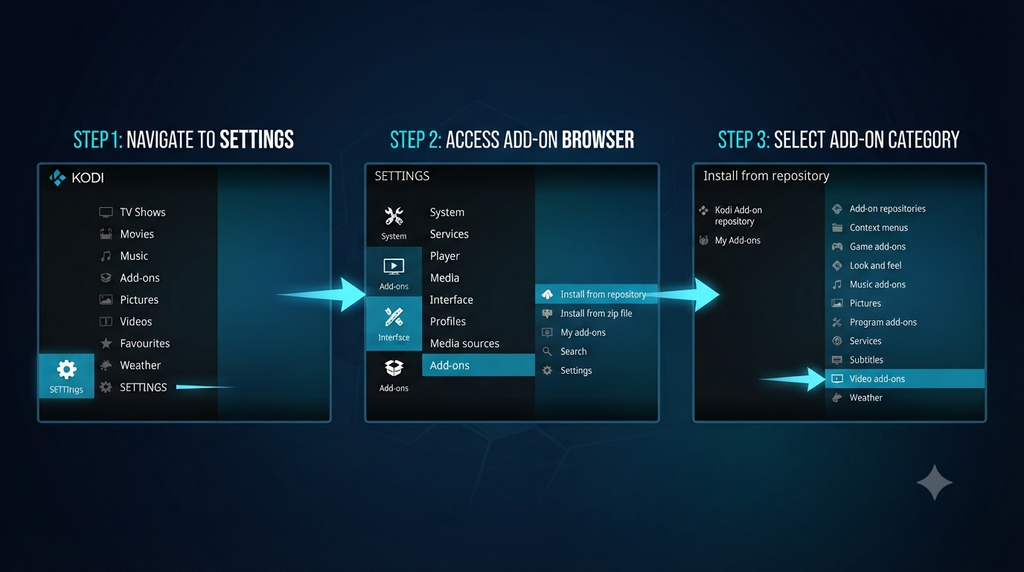
- Open Kodi and select Add-ons from the left-hand sidebar.
- Click the Package Installer icon (open box) at the top-left corner.
- Choose Install from repository.
- Select Kodi Add-on repository.
- Open Video add-ons.
- Scroll down, select YouTube, and click Install.
- Wait a few seconds for the Add-on installed notification to appear in the top-right corner.
Method 2: YouTube Kodi Addon GitHub & ZIP Download
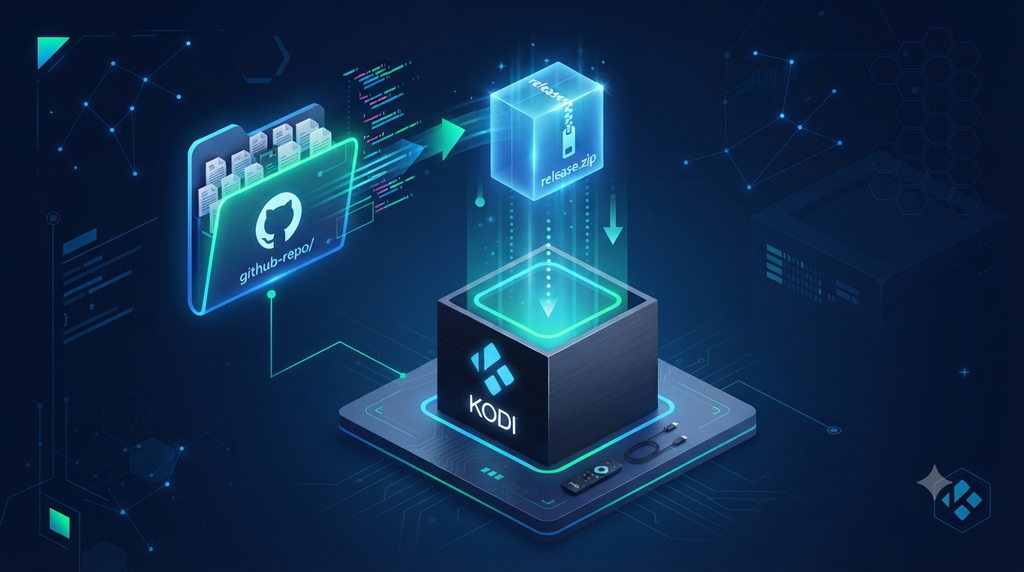
Sometimes the official Kodi repository lags behind the latest patches when YouTube updates its backend player scripts. In those cases, grabbing the latest release directly from the YouTube Kodi addon GitHub repository ensures immediate compatibility.
Step 1: Enable Unknown Sources in Kodi
If you haven’t already configured Kodi for manual ZIP installations (see our How to Enable Unknown Sources on Kodi walkthrough):
- Click the Settings gear icon on the Kodi home screen.
- Go to System > Add-ons.
- Toggle on Unknown sources and click Yes on the warning prompt.
Step 2: Download & Install the GitHub ZIP File
- On your computer, phone, or streaming box browser, visit the official maintainer repository:
[https://github.com/anxdpanic/plugin.video.youtube/releases/latest](https://github.com/anxdpanic/plugin.video.youtube/releases/latest). - Download the latest
plugin.video.youtube-x.x.x.zipfile to a folder accessible by Kodi. - Open Kodi > Add-ons > Package Installer icon.
- Select Install from zip file.
- Browse to the downloaded
plugin.video.youtube-*.zipfile and select it. - Wait for Kodi to install the addon and its required dependencies automatically.
Understanding the Kodi YouTube Addon Key Requirement
If you open the addon immediately after installation and try to search or sign in, you will likely encounter a “Quota Exceeded” or “Access Not Configured” error.
This happens because of the Kodi YouTube addon key requirement. Google assigns a free daily API quota to each project. When thousands of Kodi users share a single public key, that daily limit runs out within minutes. Creating your own free YouTube Kodi addon API key via Google Cloud gives you a private daily quota that standard home viewing will virtually never exhaust.
Step-by-Step YouTube Kodi Addon Setup & API Key Guide
Complete your YouTube Kodi addon setup in two stages: generating three credentials in Google Cloud Console, and entering them into Kodi.
Part A: Create Your YouTube Kodi Addon API Credentials
- Create a Google Cloud Project:
- Sign in to the Google Cloud Console on a computer or smartphone browser.
- Click the project dropdown at the top-left and choose New Project.
- Name it something recognizable (e.g.,
Kodi-YouTube) and click Create.
- Enable YouTube Data API v3:
- With your new project selected, open the left navigation menu and go to APIs & Services > Library.
- Search for YouTube Data API v3, select it, and click Enable.
- Generate Your API Key:
- Navigate to APIs & Services > Credentials.
- Click + Create Credentials at the top and select API key.
- Copy and save this API Key—this is your first credential.
- Configure the OAuth Consent Screen:
- Go to APIs & Services > OAuth consent screen.
- Select External as the User Type and click Create.
- Enter an App name (e.g.,
Kodi TV), your email address for User Support Email, and your email address under Developer Contact Information. Click Save and Continue through the Scopes screen. - Under Test users (or Audience), click + Add Users, enter the exact Gmail address you use for YouTube, and save. (Tip: Clicking Publish App on the OAuth screen prevents your login token from expiring every 7 days.)
- Generate OAuth Client ID & Secret:
- Return to APIs & Services > Credentials.
- Click + Create Credentials > OAuth client ID.
- Set Application type to TVs and Limited Input devices (do not choose Web application or Desktop app).
- Click Create, then copy both the Client ID and Client Secret.
Part B: Enter Your YouTube Kodi Addon API Keys in Kodi
Typing long strings with a TV remote is tedious. We recommend using the official Kore or Yatse smartphone remote app, or enabling the addon’s built-in web configuration page:
- In Kodi, navigate to Add-ons > Video add-ons, highlight YouTube, open the context menu (long-press Select or press
C), and choose Settings. - Select the API tab on the left.
- Enter your credentials carefully:
- API Key: Paste your Google Cloud API Key.
- API Id: Paste your OAuth Client ID (omit
.apps.googleusercontent.comat the end). - API Secret: Paste your OAuth Client Secret.
- Click OK to save your YouTube Kodi addon API settings.
- Open the YouTube addon and select Sign In.
- Kodi will display an activation code twice. Visit
https://www.google.com/deviceon your phone or PC, enter each code, and click Advanced > Go to [App Name] (unsafe) when prompted with the unverified personal app notice.
Enable 1080p & 4K Playback (InputStream Adaptive)
By default, YouTube restricts unconfigured players to 720p. To unlock crisp 1080p and 4K streams:
- From the Kodi home screen, go to Add-ons > My add-ons > VideoPlayer InputStream.
- Select InputStream Adaptive and ensure it is Enabled.
- Return to YouTube Addon > Settings > MPEG-DASH and toggle on Use MPEG-DASH and Use for videos.
- Set Video quality to Adaptive or your preferred maximum resolution.
Why You Should Pair Kodi with NordVPN
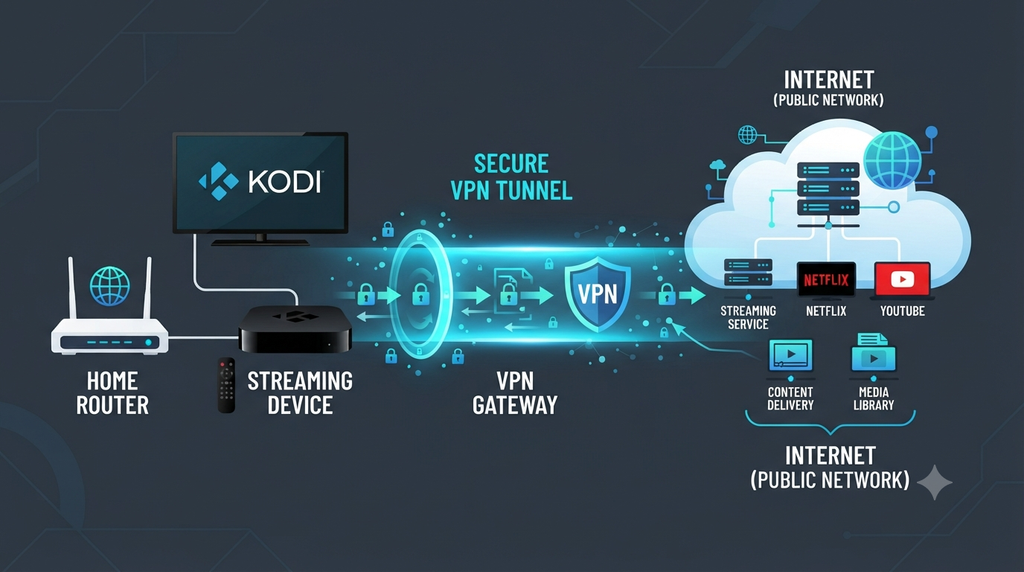
Even when streaming legitimate content through the YouTube addon or other repositories, your Internet Service Provider (ISP) can detect high-bandwidth video traffic and intentionally throttle your connection speed during peak evening hours.
Using NordVPN with Kodi solves several headaches at once:
- Prevents ISP Bandwidth Throttling: Encrypts your traffic so your ISP cannot distinguish streaming video from regular web browsing.
- Protects Third-Party Addon Traffic: Essential if you also explore community repositories from our Best Kodi Video Addons list.
- Fast NordLynx Protocol: Delivers minimal speed overhead, keeping 4K streams smooth without buffering.
- Multi-Device Coverage: Secure up to 10 devices—including Fire TV Stick, NVIDIA Shield, Android TV, Windows, and Linux—under one account.
Troubleshooting & Kodi YouTube Addon Forum Resources
| Common Issue | Likely Cause | Quick Fix |
| Quota Exceeded Error | Using default shared keys or typo in API Key | Double-check your API Key, Client ID (without .apps.googleusercontent.com), and Client Secret in Settings > API. |
| Sign-In Fails / Invalid Client | Wrong OAuth Application Type | Recreate your OAuth Client ID and ensure TVs and Limited Input devices is selected. |
| Playback Stuck at 720p or “UNKNOWN” Error | MPEG-DASH / InputStream disabled | Enable InputStream Adaptive under My Add-ons > VideoPlayer InputStream. |
| Addon Fails to Play After YouTube Update | Outdated repository build | Install the latest hotfix ZIP from the official YouTube Kodi addon GitHub releases page. |
If you run into a unique bug or playback error after a YouTube backend change, check the official Kodi YouTube addon forum thread on the Official Kodi Community Forum or browse active bug reports on the anxdpanic GitHub Issues page.
Best Kodi YouTube Addon Alternatives
If you don’t want to bother setting up a Google Cloud project or just want a lightweight player for quick searches, consider a Kodi YouTube addon alternative:
- YouTube LITE (MRFIXIT2001 Repository): A streamlined fork built for low-powered streaming sticks that focuses on fast search and playback without heavy background API overhead.
- Invidious / Piped Web Frontends (via Kodi Browser or Custom Addons): Privacy-focused YouTube frontends that proxy streams without requiring a Google account or personal API credentials.
- SmartTube (Android TV / Fire TV Standalone App): If you run Kodi on an Android-based device like Fire TV Stick or NVIDIA Shield, installing SmartTube alongside Kodi offers sponsor-skipping, 4K HDR playback, and zero API key configuration.
- Cast from Smartphone (Yatse / Kore): Share any YouTube link directly from your phone’s YouTube app to Kodi using the Kore or Yatse remote apps, which hand the stream URL straight to the YouTube addon without manual searching.
Frequently Asked Questions
Do I still need a personal API key for the YouTube Kodi addon in 2026?
Yes. While basic unauthenticated browsing occasionally works on fresh builds, signing in and streaming reliably without quota errors requires your own free Google Cloud API credentials.
Is the YouTube Kodi addon free and legal?
Yes. It is an open-source addon hosted in the official Kodi repository that connects directly to YouTube’s public API.
Can I install the YouTube addon on Firestick?
Yes. Follow either the official repository steps or the GitHub ZIP installation steps above inside Kodi on your Amazon Fire TV Stick.